
Seeing who changed what in your account
Published
Settings → Activity lists the changes Survtapp records, with who made each one and when, and lets you narrow it by person, item, action or date.
How do I see who changed something in my account?
Go to Settings, then Activity. It records the changes Survtapp audits — who made each one, what changed and when — newest first, in your account’s timezone. Narrow it with Who, Item, Action and a date range. An assistant or integration appears as "API key svt_…". Only the account owner and administrators can open it. It is not a record of everything: some actions, such as creating a share link or changing a device, are not recorded. It records changes, not views. Entries are kept for at least 12 months, and there is no download.
Settings → Activity is a record of the changes made in your account: who made each one, what they changed and when. It is read-only — nothing on the page changes your data.
Only the account owner and administrators can open it. Managers, agents and read-only users do not see the page, and cannot reach it by typing the address.
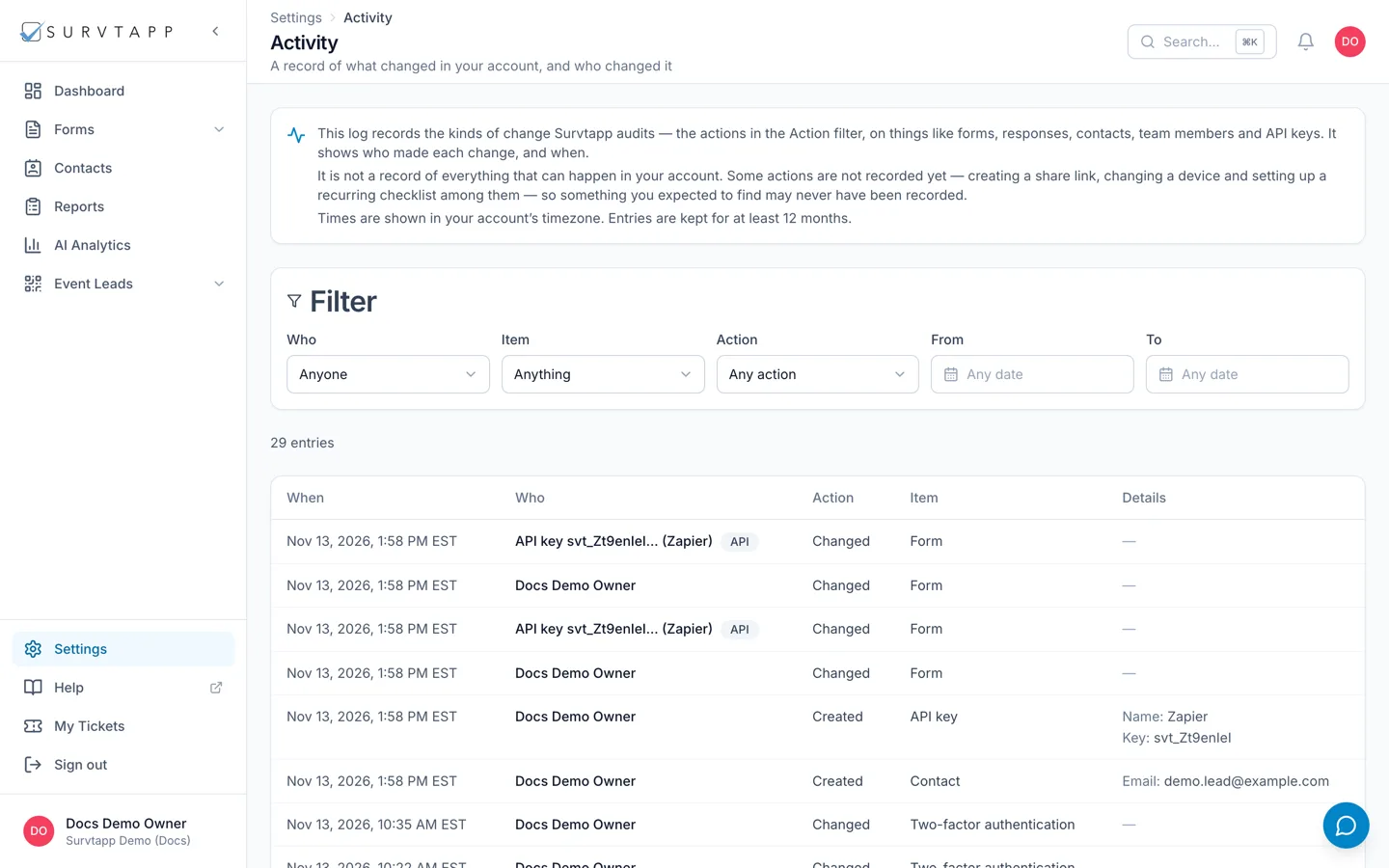
What it covers — and what it does not
The log records the kinds of change Survtapp audits: the actions listed in the Action filter, on things like forms, responses, contacts, team members and API keys. It records changes, not views — it will tell you that a form was changed, and it will not tell you who opened or read one.
- Changes made in the dashboard and in the mobile app — forms, contacts, team members, triggers, integrations and the rest.
- Sign-ins and sign-outs.
- Changes made by an API key, including by an AI assistant connected to your account.
- Some entries are made by Survtapp itself when something runs on a schedule; those are shown as "Survtapp (automatic)".
It is not a record of everything that can happen in your account. Some actions are not recorded yet — creating a share link, changing a device and setting up a recurring checklist among them — so an action you expected to find may never have been recorded rather than having been hidden from you.
Reading an entry
Entries are listed newest first, five columns wide: When, Who, Action, Item and Details. Times are shown in your account’s timezone, with the zone named beside them.
- Who is the person who made the change. An API key appears as "API key svt_…" followed by the name you gave that key, with an API badge beside it, so a change an assistant made is never mistaken for one of your people.
- Action is one of Created, Changed, Deleted, Signed in, Signed out, Exported, Shared, Permissions changed or Waiver signed.
- Item is the kind of thing that changed — a Form, a Contact, a Team member, an API key, and so on.
- Details names a few plain facts about the change, such as a form’s title or a team member’s role. Where there is nothing safe and useful to show, it reads "—" and the Action column is the whole answer.
Narrowing the list
- Go to Settings → Activity.
- Use Who to pick one person, or one of your API keys.
- Use Item to pick a kind of thing, such as Form. The list only offers kinds your account actually has entries for.
- Use Action to pick one kind of change.
- Use From and To to pick a date range. Both dates are included in full, in your account’s timezone.
- Click Clear filters to go back to everything.
Changing a filter takes you back to the first page of results. The list is paged, and the count above it tells you how many entries match.
Frequently asked questions
How far back does it go?
Entries are kept for at least 12 months. Survtapp’s retention policy for activity is 12 months, so treat anything older than that as something the log may no longer show.
Can I download it?
No. There is no download or export button on the page, and no other way to get a copy of the log.
Why does an entry say "Survtapp (automatic)"?
Because no person made it. Some changes happen on a schedule rather than when somebody clicks something — a plan change taking effect on its renewal date, for example. Those are recorded with Survtapp named as the actor rather than one of your team.
Can I see who looked at a response?
No. Survtapp records changes, not views, so there is no entry for opening a form or reading a response. Exporting data IS a change to this log: it appears as the Exported action.
Someone has left the company — are their entries still there?
Yes. Removing a person from your team does not remove what they did, so their past entries stay in the log under their name.
Can I sort the table by a different column?
No. The list is always newest first. Use the From and To dates to reach an older period instead.