
Every setting on a form, and what it does
Published
The Settings tab card by card: who can open the form, one response per person, start and end dates, the confirmation message, confirmation emails, autosave, the welcome screen, the meta description and consent.
What does each setting on a form do?
Open the form and go to the Settings tab. The cards there set which project the form belongs to, whether a public web link opens it and whether search engines may index it, one response per person and the progress bar, start and end dates and a maximum number of responses, the message or redirect after submitting, the confirmation email respondents get, autosave, a welcome screen, a meta description, and a consent step. A waiver also has a Waiver validity card.
Open a form and go to the Settings tab. The cards below are in the order you meet them. Changes are applied when you save: press Save in the header, and the builder also saves on its own every 30 seconds while there is something unsaved — the line beside the buttons says "Unsaved changes", "Saving…" or when it last saved.
Settings are per form. Nothing here changes another form, and the three form types differ in two places only: a waiver has an extra Waiver validity card, and the Notifications and Visibility cards read differently on a waiver. Both are called out below.
Project
Files this form under one of your projects, so it can be found with the rest of that work. Pick one from the list, or leave it as No project. If you have not created any projects, the card says so and points you at the Projects page.
Visibility
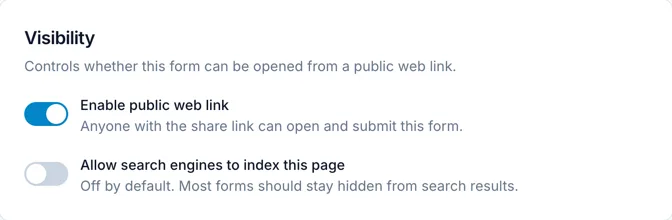
One switch, Enable public web link, decides whether a share link opens at all. With it off, "Share links will not open. Only your agents can collect this form in the app."
Surveys and checklists have it on. A waiver has it OFF, deliberately — a signed legal record should go on the open web because you chose that, not as a side effect of creating a share link. This is the single most common reason a waiver link does not open for the person you sent it to; see Send a form or waiver link to someone.
With the link on, a second switch appears: Allow search engines to index this page. It is off by default, and most forms should stay that way — turn it on only for a form you actively want found in search, such as a public sign-up. On the free plan the switch is disabled and public forms stay hidden from search results.
Response Settings
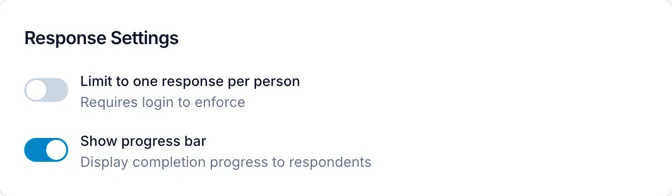
- Limit to one response per person — "Requires login to enforce". On a form shared as a public link, where respondents are anonymous, there is nothing to identify a person by, so do not rely on this to stop repeat submissions from the open web.
- Show progress bar — on by default. Shows respondents how far through they are. Turn it off for a very short form, where the bar says little.
Whether the form asks for a name, an email and your other contact fields is not here — it is the Collect contact information switch on the Contact Form tab.
Waiver validity
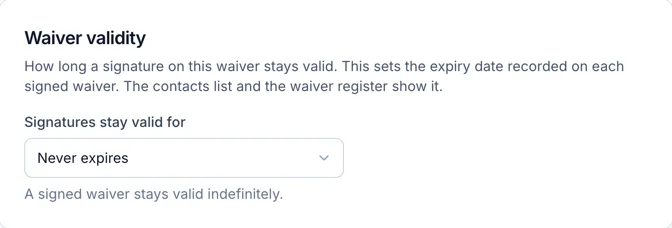
On a waiver only. How long a signature on this waiver stays valid. The setting is Signatures stay valid for, and it writes an expiry date onto each signed waiver, which the contacts list and the waiver register then show.
- Never expires — a signature stands indefinitely.
- One time — for a per-visit waiver. The signature stays valid until the signer’s next purchase of a product you have marked as needing a waiver, through a connected point-of-sale, which uses it up and puts them back to Pending. With no point-of-sale connected nothing uses it up, so the signer stays Completed. There is no expiry date either, so there is nothing to count down.
- A rolling window — 1 month, or 3, 6, 12, 24, 36, 48, 60, 72 or 84 months from the date each person signs.
A waiver configured before this dropdown existed may show "Fixed date (no longer offered)". That is the setting it genuinely has; leave it unless you want to move it onto one of the options above.
Schedule
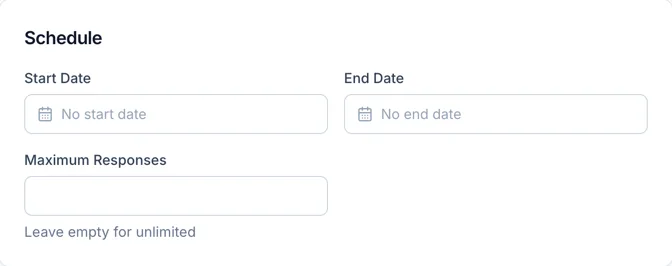
- Start Date — before it, a visitor sees "This form is not open yet". Leave it blank for no start date.
- End Date — after it, a visitor sees "This form has closed". Leave it blank for no end date.
- Maximum Responses — the form stops accepting submissions once this many have arrived. "Leave empty for unlimited".
These apply to the form as a whole. A single share link can carry its own expiry and its own response cap, set from the Share Links page — useful when you want one channel to close early and another to stay open.
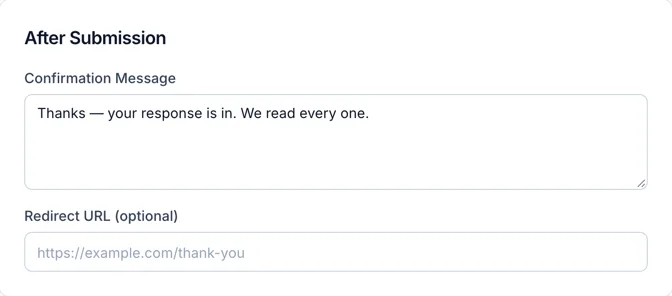
After Submission
- Confirmation Message — what the respondent reads after submitting. There is no separate title field; the message is the whole of it.
- Redirect URL (optional) — send the respondent to a page of your own instead of the confirmation message. Enter the full address, including https://.
Notifications
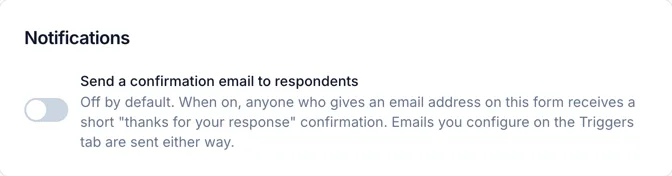
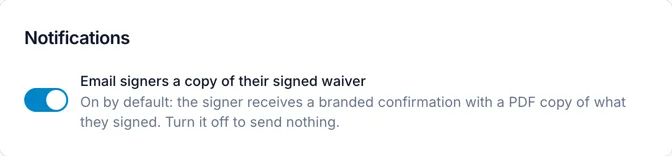
One switch, and it is about the respondent rather than you.
- On a survey or checklist it reads Send a confirmation email to respondents, and it is off by default. When on, anyone who gives an email address on this form receives a short thanks-for-your-response confirmation.
- On a waiver it reads Email signers a copy of their signed waiver, and it is ON by default: the signer receives a branded confirmation with a PDF copy of what they signed. Turn it off to send nothing.
There is deliberately no "email me on each response" setting. New-response alerts reach you in the app and as a push notification on your phone, not as email, so that a busy form cannot flood your inbox. If you do want an email per submission, build it on the Triggers tab, where you choose the recipients and the wording — and trigger emails are sent whether or not the switch above is on.
Autosave & Resume
Let respondents save their progress and come back later. Off by default. When on, respondents are asked for their email before the first question, their answers save as they go, and they are emailed a private link to finish later; unsubmitted progress and any attached files are deleted after 30 days.
This card is only on the page if your plan includes it — a feature outside your plan is absent rather than shown greyed out. The switch can also be unavailable on a form the setting cannot legally apply to, and the card says which reason it is. See Save and Resume for the whole flow.
Welcome Screen
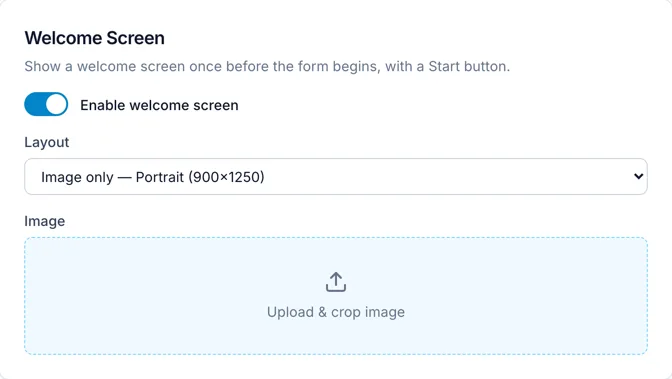
Shows one screen before the form begins, with a Start button. Turn on Enable welcome screen, then choose a Layout:
- Text only (landscape & portrait)
- Text + Image — Portrait (600×400)
- Text + Image — Landscape (400×600)
- Image only — Portrait (900×1250)
- Image only — Landscape (1400×600)
A layout with text gives you a Welcome title — which falls back to the form’s own title if you leave it blank — and a Welcome message with bold, italic, underline, lists, links and alignment. A layout with an image gives you an Image upload that crops to the size in the layout name. The title is always centred; the message follows the alignment you set.
SEO
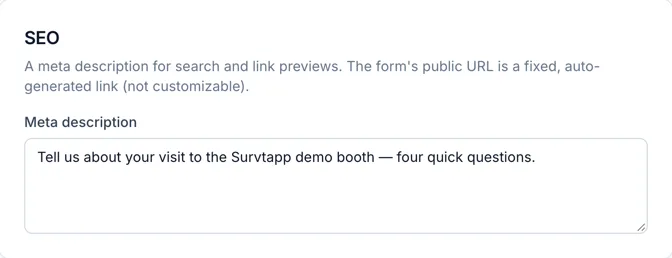
One field, Meta description: a short summary shown in search results and link previews. Write it for a person reading a search result, in about 150 characters.
The form’s public address is generated for you and cannot be customised — there is no custom URL or slug for a form, on any plan. If you need a tidy address to hand out, link to the share link from a page of your own. And remember the meta description only reaches search engines at all if you have turned indexing on under Visibility.
GDPR & Consent
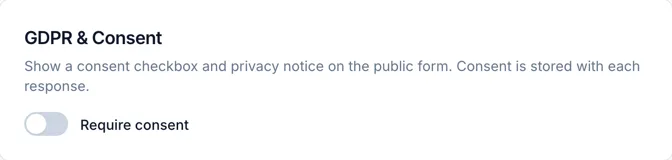
Require consent adds a consent step to the public form, and the consent is stored with each response. With it on, a Consent notice field appears for the wording — say what you collect, what you do with it and who to contact. The respondent sees the notice and has to accept before they reach the questions.
This is separate from the Terms & Conditions question, which puts your terms inside the form with an "I accept" box. Consent is about data protection; Terms is about what the respondent is agreeing to. A form can have both. See GDPR & Data Privacy and Terms & Conditions Element.
Frequently asked questions
Why will my waiver link not open for the person I sent it to?
A waiver is private until you turn on Enable public web link under Visibility and save. Until then the recipient sees "This link is no longer available".
Can I give my form a custom web address?
No. The public address is generated and fixed, and the SEO card says so. You can create several named share links for the same form, but their addresses are generated too.
How do I get an email every time someone responds?
Build a trigger on the Triggers tab. The Notifications card here only controls the email the respondent gets; new-response alerts to you are in-app and push, by design.
Why can I not find the Autosave & Resume card?
Your plan does not include it. Features outside a plan are not shown on the page at all, rather than greyed out.
Where did "Allow anonymous responses" go?
It moved to the Contact Form tab and reads positively there, as Collect contact information. It is the same stored setting and your existing forms behave exactly as before.