
Creating Waivers
Collect legally-signed waivers with contact details and a confirmation PDF.
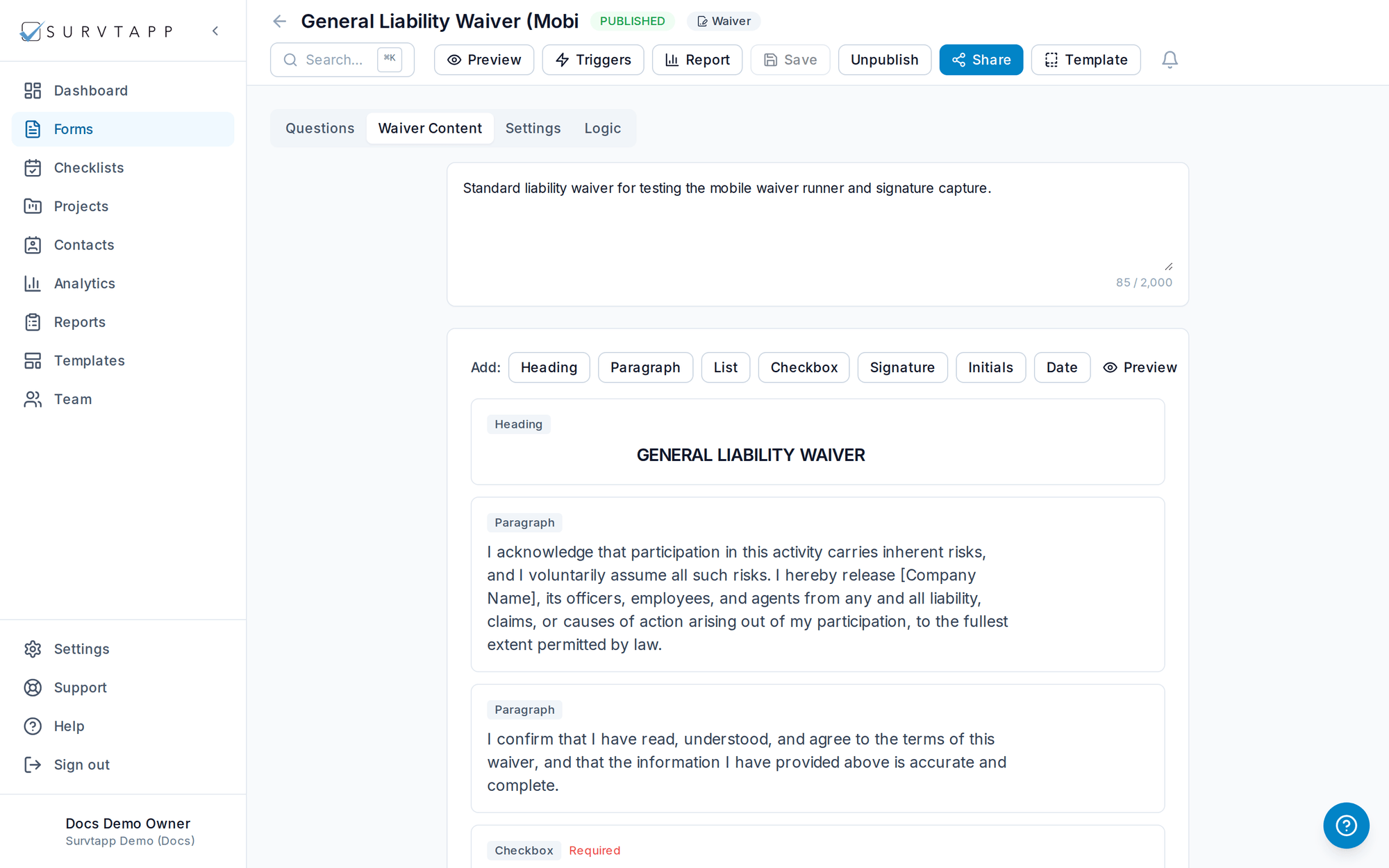
Waivers capture consent and a signature, and email the signer a PDF copy.
- Contact fields are enabled by default and anonymous responses are disabled.
- After submission, the respondent receives a confirmation email with a PDF attached.
- The PDF includes their IP address, approximate location, submission date/time, all answers and waiver acceptance details (including version).
What signing looks like
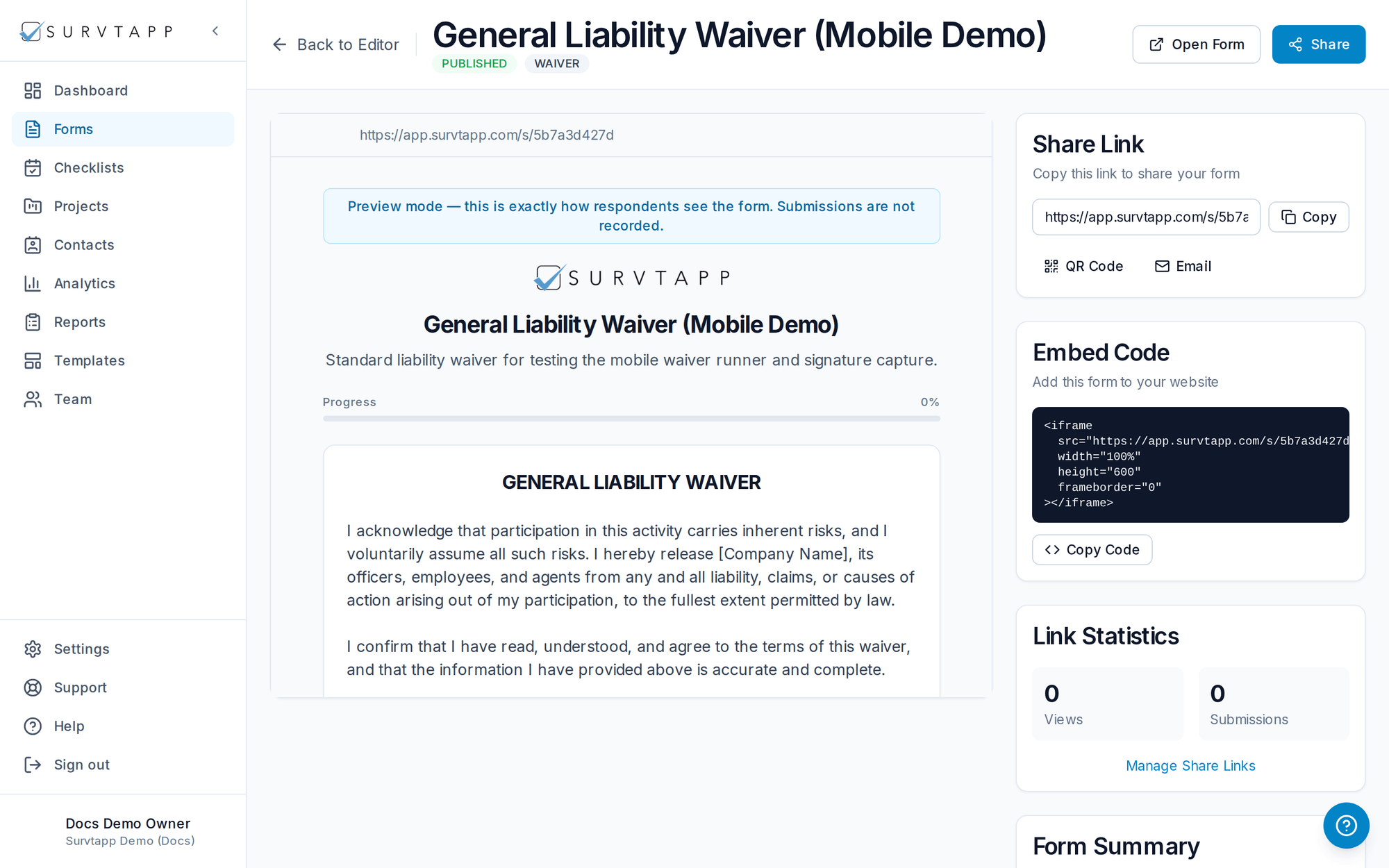
Respondents fill in the required contact details and sign directly on the screen, then submit — the same experience on a phone, tablet or desktop.
Waivers are private until you say otherwise
Unlike a survey or a checklist, a published waiver is not reachable from the open web by default. Most waivers are signed in person by your own agents in the Survtapp app, so leaving them private is the safer starting point.
To send a waiver to someone by link or email, open it, go to the Settings tab, turn on Enable public web link under Visibility, and press Save. Send a form or waiver link to someone covers that step and every way to hand the link over.