
Terms & Conditions Element: Ask Respondents to Accept Your Terms
Published Updated
Show your terms and conditions inside a form, with an "I accept" checkbox respondents must tick before they can submit. Never pre-ticked; one per form; does not count toward the question limit.
How do I make respondents accept my terms before they submit?
Add the Terms & Conditions element from the Layout section of the builder, paste in your terms, and leave Require acceptance on. Respondents must tick the "I accept" checkbox, which is never pre-ticked, before they can submit, and the response records what they accepted. A form can have one, and it does not count toward the question limit.
The Terms & Conditions element puts your terms inside the form itself, with an optional "I accept" checkbox. When acceptance is required, the respondent cannot submit until they have ticked it, and the response records what they accepted.
Adding it to a form
- Open the form in the builder and click Add Question.
- Under Layout, choose Terms & Conditions.
- Give it a title, for example "Event rules".
- Type or paste your terms into the Terms content box.
- Leave Require acceptance switched on and, if you want, change the checkbox label.
A form can have one Terms & Conditions element. Once a form has one, its tile in the picker is disabled and reads "One Terms element per form". It can go anywhere in the form, on any form type, and it does not count toward the 75-question limit.
Writing the terms
The Terms content box supports bold, italic and underline, bulleted and numbered lists, links, and left, centre, right or justified alignment. On a web form, a link to a web page opens in a new tab, so a respondent who follows it does not lose the form they are filling in.
The terms are text only. Images, video and other embedded media are removed \u2014 including any that come along when you paste from Word or a web page. This keeps the terms readable on a phone, and it stops a pasted image from being loaded from someone else\u2019s server every time a respondent opens your form.
The "I accept" checkbox
- Require acceptance is on when you add the element. Turn it off to show the terms for information only, with no checkbox; nothing is then recorded on the response.
- The checkbox label can be up to 100 characters. Leave it blank and respondents see "I accept the Terms and Conditions".
- The element has no separate Required switch. Require acceptance is the only setting that decides whether the respondent must tick the box.
Why the box is never pre-ticked
The checkbox always starts empty, and there is no setting to pre-tick it. An acceptance only means something if the respondent ticked the box themselves; a box that arrives already ticked records nothing about what they actually agreed to. Under GDPR, a pre-ticked box is not valid consent at all. Nothing else in Survtapp is pre-ticked either.
What the respondent sees
The title, your terms in a box, and \u2014 when acceptance is required \u2014 the checkbox with your label beside it. If they try to submit without ticking it, the form does not submit and shows:
"Please accept the Terms and Conditions to continue."
Unticking the box withdraws the acceptance, so the message comes back if they try to submit again.
Conditional logic
If your logic hides the Terms & Conditions element from a respondent, they are not asked to accept it \u2014 nobody can accept terms they were never shown. The element cannot itself be used as the condition that shows or hides other questions, and it cannot be referenced in a Calculated Field formula.
What is recorded on the response
- When the respondent ticks the box, the response records the acceptance together with a snapshot of the checkbox label and the terms text exactly as they were at that moment. If you edit the terms afterwards, earlier responses keep the version that respondent accepted.
- On the response page the element shows as "Accepted", with the label that was ticked and the time. The full terms text is stored with the response but is not displayed on that page.
- Exports and emailed response reports show "Accepted".
- The element is not charted in reports \u2014 where acceptance is required, every submitted response has accepted, so a chart would always read 100%.
In the mobile app
The current version of the Survtapp mobile app shows the terms, with their formatting and links, and the "I accept" checkbox, never pre-ticked. When acceptance is required, the response cannot be submitted until the box is ticked, and the app shows the same message as the web: "Please accept the Terms and Conditions to continue." The acceptance is recorded on the response exactly as it is on the web.
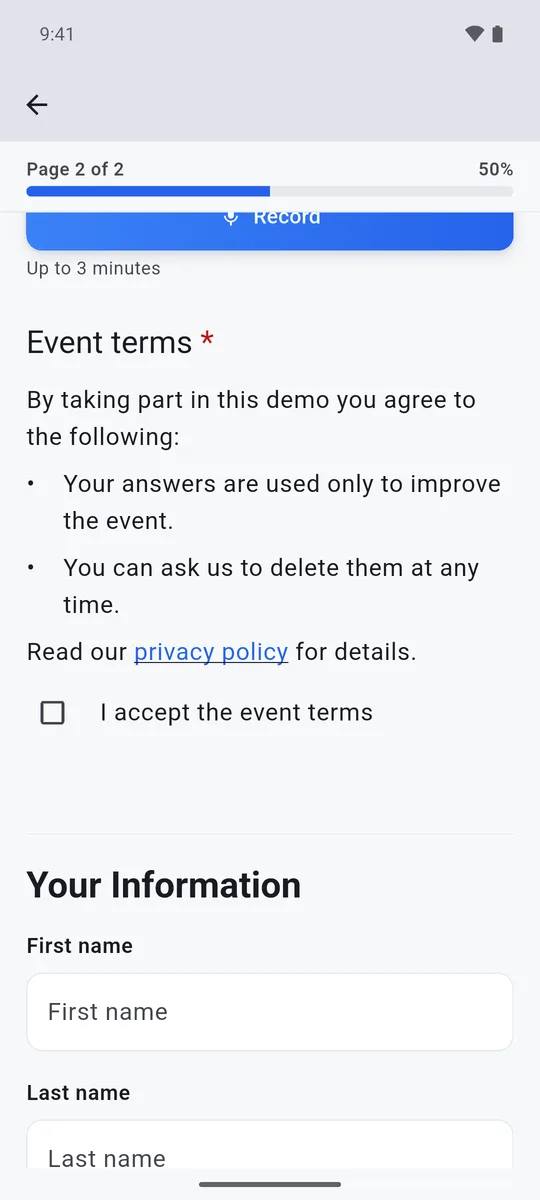
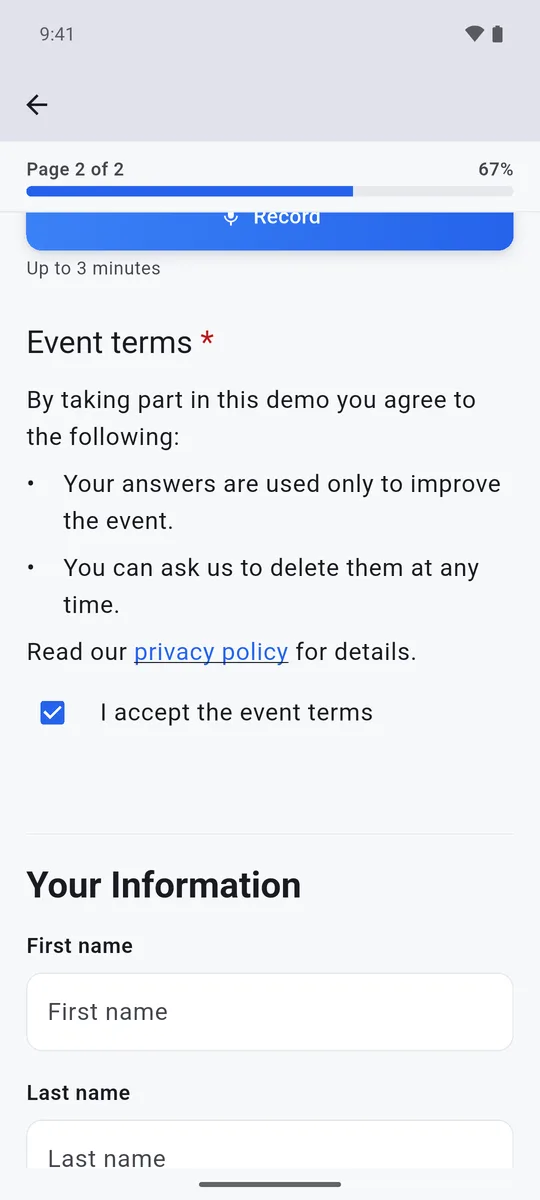
An older version of the app cannot show the terms or the checkbox. Responses collected on it are still saved and sync as normal, but without an acceptance, so make sure your agents have updated the app before they collect a form that contains terms.
Frequently asked questions
How do I make people agree to my terms before submitting?
Add a Terms & Conditions element from the Layout section of the Add Question picker, paste your terms, and keep Require acceptance switched on. The form cannot be submitted on the web until the box is ticked.
Can I pre-tick the "I accept" box?
No. The box always starts unticked, so every acceptance on your responses is one the respondent gave themselves.
Can I add more than one Terms & Conditions element?
No, one per form. If you have several documents to accept, put them in the one element under separate headings, or link to each from the terms text.
Does it count toward the 75-question limit?
No. You can add it to a form that already has 75 questions.
Can I add images or a logo to the terms?
No. The terms are text only, and images are removed when you paste them. Your account logo still appears at the top of the form as usual.
How can I prove what someone accepted?
Each acceptance is stored with the label and terms text as they were when the respondent ticked the box, and with the time. Editing the terms later does not change what earlier responses recorded.
What happens if a respondent does not tick the box?
On the web form they cannot submit. They see "Please accept the Terms and Conditions to continue." beside the checkbox until they tick it.
Does it work in the mobile app?
Yes, in the current version of the app, which also requires the box to be ticked before submitting. An older version of the app saves the response without an acceptance, so ask your agents to update.