
Getting help: the assistant, the Knowledge Base and a support ticket
Published
Ask the in-app assistant, search the Knowledge Base, or raise a ticket with Survtapp support and follow the conversation in My Tickets.
How do I get help or contact Survtapp support?
Open the chat launcher on any page and ask — it answers from this Help Center and can pass your question to our team. Or go to My Tickets in the sidebar, click New Ticket, search for your problem, and if nothing helps click "None of these helped — create a ticket" and fill in Subject and Details. You can also email support@survtapp.com. Replies arrive by email and in the ticket.
There are three ways to get an answer, in the order that usually gets you one fastest: ask the assistant, search the Knowledge Base, or raise a ticket with our support team.
Ask the assistant
Every page carries a chat launcher in the corner. Open it and type a question — "Ask a question…" — and it answers from this Help Center, with links to the articles it used.
It answers only from the Help Center, and it says so when it cannot: "I can only help with questions about Survtapp, and I couldn’t find anything in our Help Center that answers that. Want me to pass this to our team?" It would rather say that than guess. When it offers to pass your question on, taking it up opens a ticket for you with what you asked already in it.
There is a thumbs up and thumbs down under each answer. Using them is the quickest way to tell us an article is wrong or missing — it is read.
Search the Knowledge Base
The Knowledge Base is this library. Open it from the Knowledge Base button on My Tickets, or from your account menu, and search for what you are trying to do. Search reads article titles, summaries, categories and tags, so phrase it the way you would say it out loud — "email a waiver to a customer" works better than one keyword.
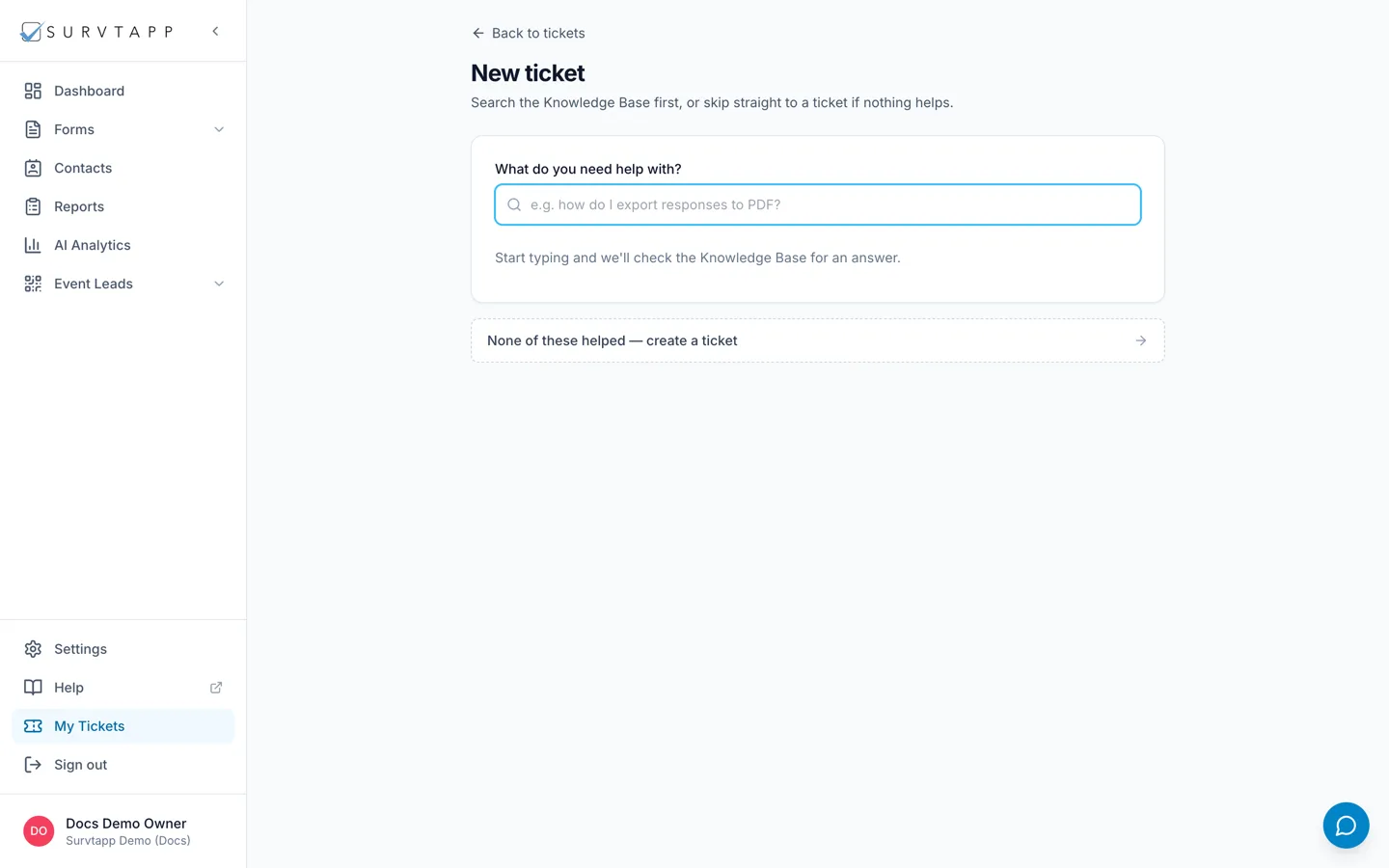
Raise a ticket
- Go to My Tickets in the sidebar, then click New Ticket.
- Type what you are stuck on in the search box — "e.g. how do I export responses to PDF?" — and read any article it suggests.
- If none of them help, click "None of these helped — create a ticket".
- Fill in Subject and Details, attach a screenshot if it would help, and click Submit ticket.
The search step is not a hurdle — most questions are already answered, and an article arrives now rather than after a reply. The ticket form is always one click away.
What to put in a ticket
- Subject — "Briefly, what’s wrong?" One line.
- Details — "What happened, and what did you expect?" Include the form name, what you clicked, and the exact wording of any message you saw. That one detail is usually the difference between one reply and four.
- Attachments — PNG or JPEG screenshots, up to 1 MB each and 5 MB in total. The panel shows how much you have used. If you need to send a PDF, reply to the email the ticket sends you and attach it there.
Raising a ticket from the mobile app
Agents in the field do not need the web. The app’s menu has a Support entry: it lists the tickets on the account, New ticket raises one with a Subject and Details, and the confirmation names it — "Ticket #1234 created. We’ll be in touch."
Open a ticket in the app to read the thread and reply, and a closed one can be reopened the same way as on the web — the box says "This ticket is closed. Replying will reopen it."
Tickets need a connection, unlike collecting. Offline, the app says so rather than queueing one: "You appear to be offline. A support ticket needs a connection — please try again once you’re back online."
Following the conversation
My Tickets lists every ticket on your account — not just your own, so an account owner can see what their team has raised. Each row shows the ticket number, its status, the subject, who raised it and how many messages it holds. Open one to read the whole thread and reply.
- Open — raised, and not yet picked up.
- With support — our team has it.
- Awaiting your reply — we have answered and need something from you. Nothing moves until you reply.
- Closed — finished. Replying to a closed ticket reopens it, and the box says so before you do.
Write a reply in the box at the bottom of the ticket and press Send reply. You are emailed when we answer, and replying to that email adds to the same ticket.
Frequently asked questions
Where do I find my tickets again?
My Tickets in the sidebar. An empty list is normal — it means you have never needed one.
Can I email support instead?
Yes: support@survtapp.com. A ticket is easier to follow, because everything about one problem stays in one thread with its own number, and your whole team can see it.
Why does the assistant refuse to answer my question?
It is restricted to the Help Center on purpose, so it cannot invent an answer about your account or your data. If it cannot find anything, let it pass the question to us.
Can I send a PDF with my ticket?
Not on the form — it takes PNG and JPEG images only. Raise the ticket, then reply to the email it sends you and attach the PDF to that.