
Keeping your account secure
Published
Change your password, turn on two-factor authentication, keep your backup codes somewhere safe, and sign out of devices you no longer use.
How do I keep my Survtapp account secure?
Settings, then Security. Change your password there — eight characters with an uppercase letter, a lowercase letter, a number and a special character — turn on two-factor authentication, and save the backup codes somewhere safe, because they are the only way in if you lose your authenticator. The Backup codes row shows how many are left and Regenerate issues a new set. Sign out other devices ends every other session and leaves you signed in here.
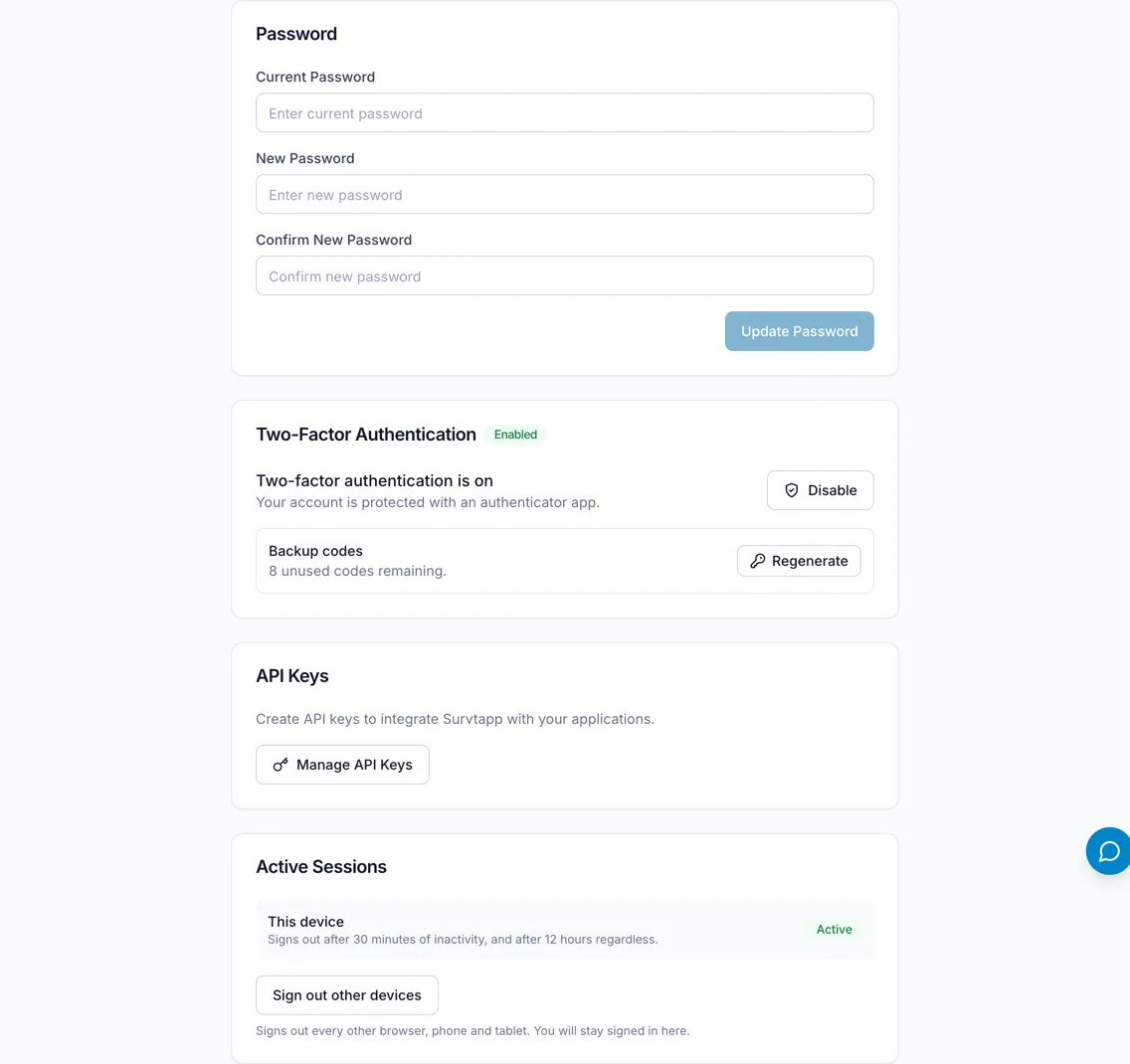
Everything here lives on one screen: Settings, then the Security tab. Three cards — Password, Two-Factor Authentication and Active Sessions.
Changing your password
- Go to Settings, then Security.
- In the Password card, fill in Current Password, New Password and Confirm New Password.
- Save.
The new password has to meet five rules, and the card ticks them off as you type: at least 8 characters, one uppercase letter, one lowercase letter, one number and one special character.
Turning on two-factor authentication
Two-factor authentication asks for a six-digit code from your phone after your password, so a stolen password alone is not enough to get in. See Two-Factor Authentication (2FA) for the steps.
Your backup codes
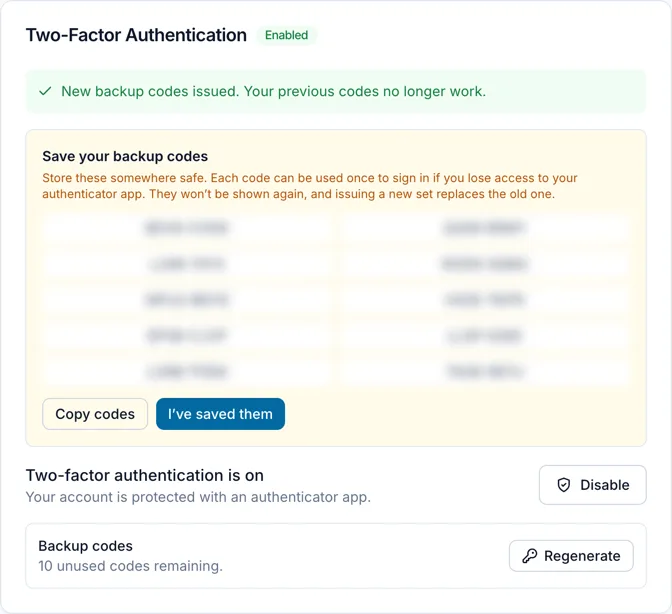
When you turn 2FA on you are shown a set of single-use backup codes, with a warning that says exactly what to do: "Store these somewhere safe. Each code can be used once to sign in if you lose access to your authenticator app. They won’t be shown again, and issuing a new set replaces the old one."
Take that literally. Copy codes puts them on your clipboard; put them in a password manager or somewhere offline, not in the same place as your password. They are the only way back in if you lose the phone with your authenticator on it.
- The Backup codes row on the Security tab shows how many you have left, because codes are used up silently at sign-in and otherwise the first sign that the last one is gone is being locked out.
- Regenerate issues a fresh set. You confirm with a current authenticator code or your password, and the message is plain: "New backup codes issued. Your previous codes no longer work." Save the new ones before you leave the page.
- When none are left the row says so and asks you to generate a new set. Do it then, not later.
Signing in on the mobile app with 2FA on
The Survtapp app asks for the same six-digit code after your email and password. A backup code works there too.
Active sessions
The Active Sessions card shows the device you are using now and offers one button: Sign out other devices. It "signs out every other browser, phone and tablet. You will stay signed in here."
Use it if you have signed in somewhere you no longer control — a shared computer, a sold laptop, an ex-colleague’s phone — or any time you suspect someone else has your password. Change your password first, then sign out the other devices, in that order.
Frequently asked questions
I have lost the phone with my authenticator app. How do I get in?
Use one of your backup codes in place of the six-digit code. Once you are in, go to Settings, then Security, and Regenerate your codes — and set 2FA up again on your new phone.
I have lost my phone AND my backup codes.
Contact Survtapp support: raise a ticket from My Tickets in the sidebar if you can still get in anywhere, or email support@survtapp.com. We cannot read your codes — nobody can — so this is an identity check, and it is slower than using a code you saved.
Does signing out other devices delete anything?
No. It ends sessions. Responses saved on a phone that has not synced yet stay on that phone and upload when someone signs in again.
Can I see a list of everywhere I am signed in?
Not individually. The card shows this device and lets you sign out all the others at once.