
Question Types & Form Components Reference
Published Updated
All 22 question types and every layout block, with configuration options and examples — including which two need the mobile app.
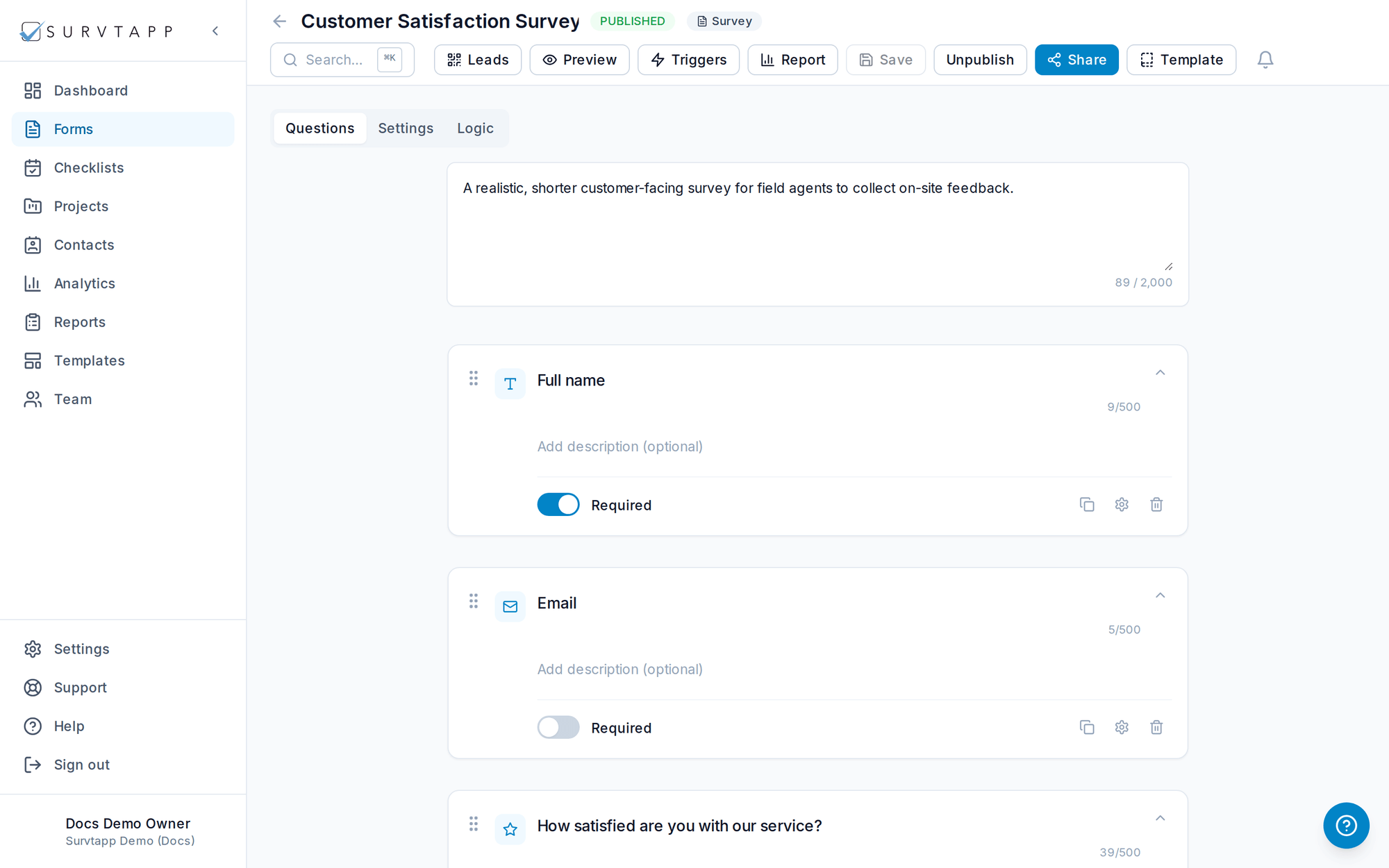
What question types does Survtapp support?
Survtapp supports 22 question types, from short and long text, numbers and calculated fields to ratings, choices, signatures, locations and barcodes, plus layout blocks such as page breaks and descriptions. Two of them, the Business Card Scanner and the Voice Note, can only be answered in the mobile app. Add any of them from the form builder.
Survtapp supports 22 question types, plus layout blocks that shape how a form flows. Add any of them from the form builder.
Question types
- Short Text — A single line of free text — names, short answers, references.
Configuration: Placeholder text, min/max character length, required toggle.
Example: "What is your full name?" - Long Text — A multi-line paragraph for detailed, open-ended feedback.
Configuration: Placeholder text, min/max character length, row height.
Example: "What could we improve about your visit?" - Number — Numeric input with optional min/max validation.
Configuration: Min/max value, decimal precision, unit label.
Example: "How many employees does your company have?" - Calculated Field — A read-only number computed automatically from other answers on the form — respondents never type into it.
Configuration: A formula referencing other questions as {{questionId}}, using +, -, *, /, and parentheses. An unanswered referenced question counts as 0; a divide-by-zero or invalid formula leaves the field blank rather than showing an error.
Example: "{{quantity}} * {{unit_price}}" to show a live order total as earlier answers are filled in. - Email — An email address with built-in format validation.
Configuration: Required toggle; format is validated automatically.
Example: Used as a default contact field to email a receipt or waiver PDF. - Phone — A phone number with country code selection.
Configuration: Default/allowed country codes, required toggle.
Example: Collecting a callback number on a lead-capture form. - Date — A calendar date picker.
Configuration: Min/max date range, date format.
Example: "Date of visit" or a waiver signing date. - Time — A time-of-day picker.
Configuration: 12h/24h format, min/max time range.
Example: "Preferred appointment time". - Multiple Choice — Pick one option from a list (radio buttons).
Configuration: Option list (with optional images), randomize order, "Other" free-text option.
Example: "Which service did you use today?" - Checkboxes — Pick several options from a list.
Configuration: Option list, min/max selections, "Other" free-text option.
Example: "Which amenities did you use?" (select all that apply) - Dropdown / Select — Choose one option from a compact dropdown.
Configuration: Option list, searchable toggle for long lists.
Example: "Select your country." - Rating (Stars) — A 1–5 (or configurable) star rating.
Configuration: Number of stars (3–10), icon style, labels for low/high ends.
Example: "Rate your overall experience." - Scale / Likert / Slider — A numeric scale, ideal for agreement and NPS-style questions.
Configuration: Min/max value, step size, low/high end labels.
Example: "How likely are you to recommend us?" (0–10 NPS) - Smiley Scale — A friendly emoji-based satisfaction rating.
Configuration: 3 or 5-point emoji set, labels per emoji.
Example: "How was your meal today?" - Yes / No (Boolean) — A simple two-option toggle.
Configuration: Custom labels for the two options (default Yes/No).
Example: "Would you visit again?" - Multi-Image Selection — Respondents choose from a set of image tiles instead of reading a list of words — useful when the thing being chosen is visual, or when respondents do not all share a language.
Configuration: An image and a label per choice, and how many may be picked: set the maximum to 1 for a single-choice image picker, or allow several. A minimum can be set as well, so "pick at least two" is enforced at entry. Add a tile for each choice the question needs. Works on the web and in the mobile app alike.
Example: "Which design do you prefer?" with product mockups, or "Which of these did you see on site today?" allowing two to four picks. - Signature — Capture a drawn signature — used heavily in waivers.
Configuration: Required toggle; renders as a signature pad on touch and desktop.
Example: Signing a liability waiver before an activity. - Location — Capture a GPS location or address.
Configuration: Auto-capture on load vs. manual, reverse-geocoded address display.
Example: Recording where a checklist inspection took place. - Barcode / QR — Scan a barcode or QR code as an answer.
Configuration: Accepted symbologies, camera vs. manual entry fallback.
Example: Scanning an asset tag during a checklist inspection. - Business Card Scanner — Photograph a business card and have its details read off the card and filled in for you, so a contact can be captured in seconds without typing. Nothing is saved until you have seen the fields and confirmed them.
Configuration: Which contact fields the card maps to. A confirmation step is always shown and cannot be skipped — every field is editable there, so a misread is corrected before it reaches your contacts. A form may contain at most one Business Card Scanner. Mobile app only — see below.
Example: Capturing a prospect’s details at a trade-show booth from the card they just handed over. - Matrix / Grid — Rate multiple items against the same scale in a grid.
Configuration: Row labels, column scale/options, single or multi-select per row.
Example: "Rate each of the following: Staff, Cleanliness, Speed" against a 1–5 scale. - Voice Note — Record a short spoken note and play it back later from the response. The recording is stored and played back exactly as it was made — Survtapp does not transcribe it, and there is no text version of it anywhere.
Configuration: A maximum recording length, up to three minutes. The recording can be played back and re-recorded before the response is submitted, and is played back afterwards from the response detail. Voice notes are kept on every plan, including the free plan. Mobile app only — see below.
Example: An agent dictating "customer wants a follow-up call on the maintenance contract, not the new install" straight after a booth conversation, instead of typing it.
What they look like on a device
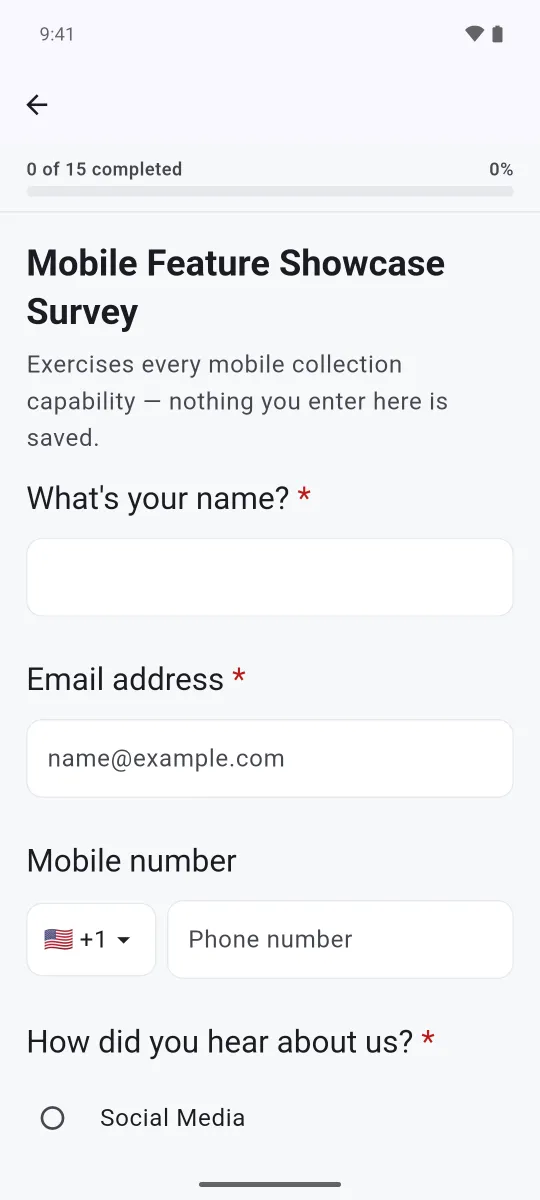
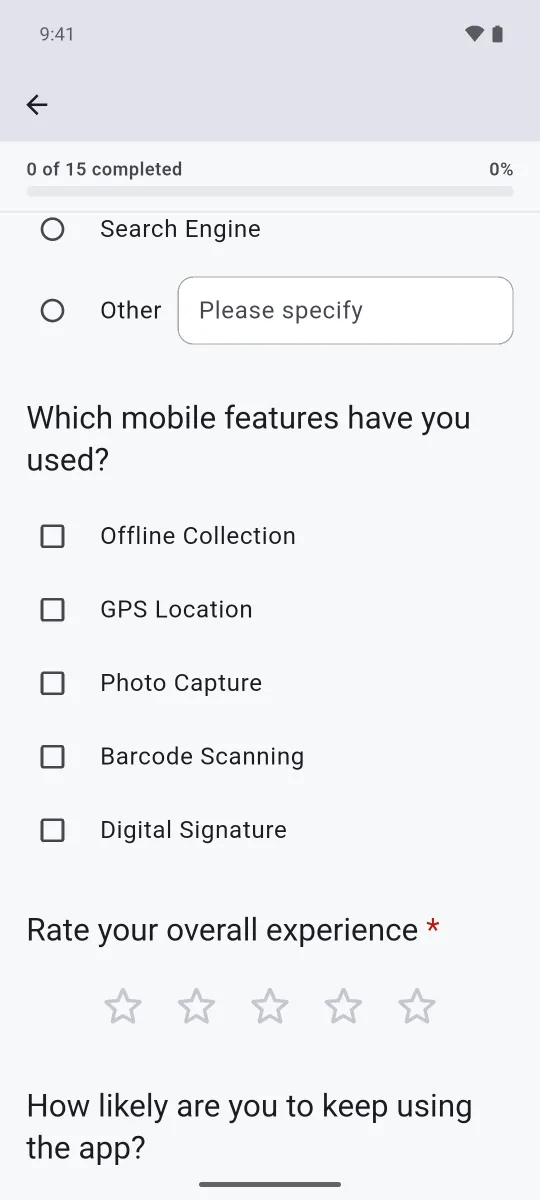
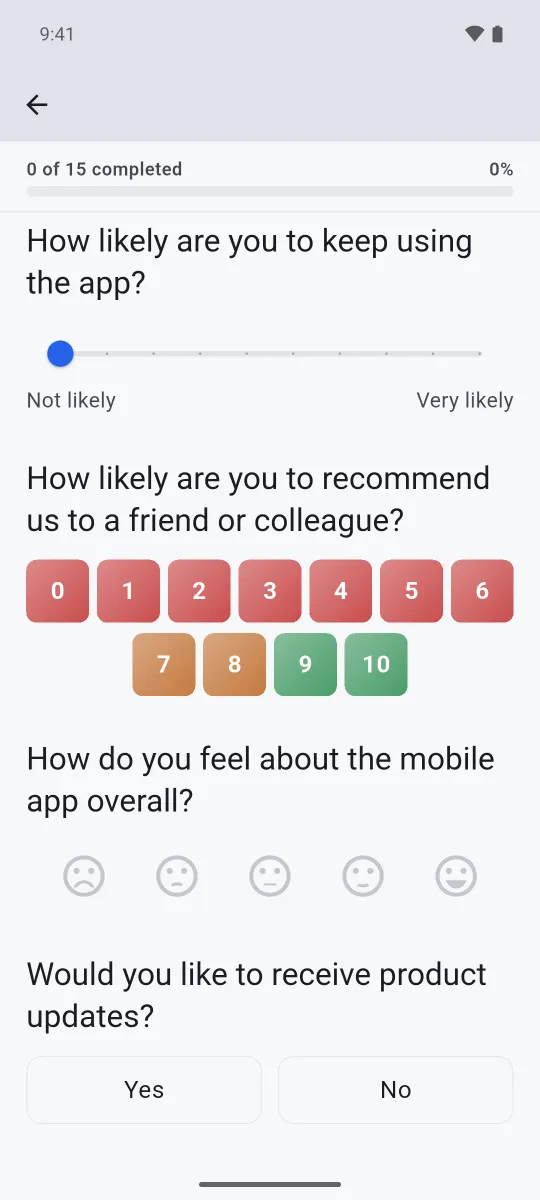
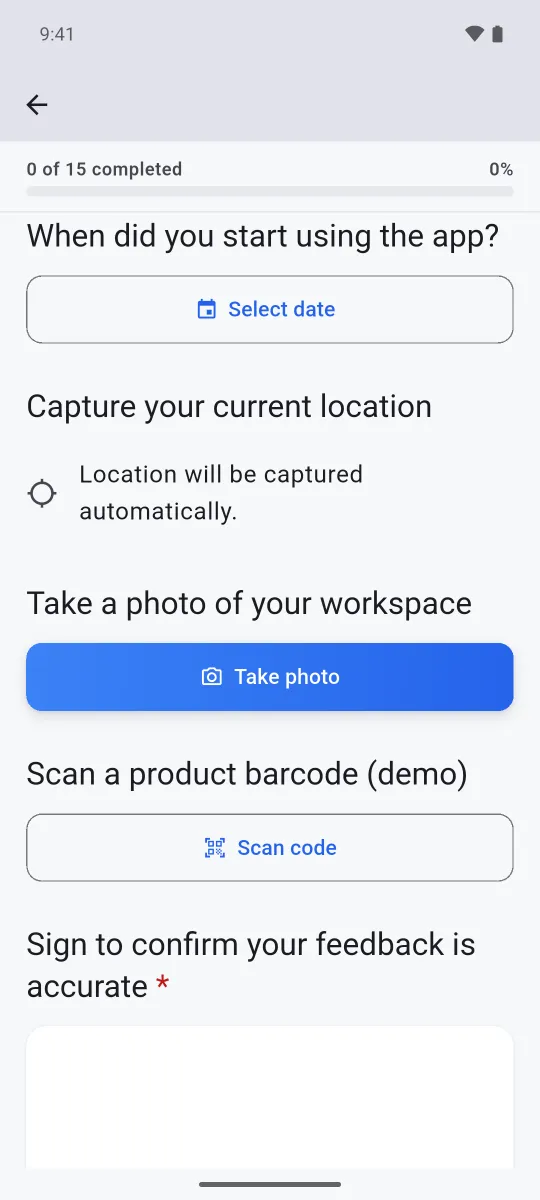
These four screens are one demo survey running in the Survtapp app, and between them they show twelve of the types above. A form shared as a web link renders the same questions in the browser.
Questions that need the mobile app
Business Card Scanner and Voice Note can only be answered in the Survtapp mobile app, because both rely on the device's camera or microphone in a way a shared web link cannot offer reliably. You can still put them on a form and still share that form as a link: everything else on the form works exactly as normal, and the web page shows a short note in place of that one question instead of an input nobody can fill in. If you need every answer collected through a web link, leave these two off that form.
Layout & structural components
- Welcome Message — An intro screen shown before the first question.
Configuration: Set on the form’s Settings tab under Welcome Screen: a layout (text only, image only, or text and image, portrait or landscape), a title, a message and an optional image. The message supports bold, italic, underline, bulleted and numbered lists, links, and left, centre, right or justified alignment. The title is always centred.
Example: Explaining the purpose of a survey and expected completion time. - Thank-You / End Screen — A closing screen shown after submission.
Configuration: Custom title/message per form, or the account default; redirect URL.
Example: Showing a discount code or next-steps link after a survey. - Page Break — Splits a long form into multiple steps with a progress bar.
Configuration: Placed between any two questions; unlimited pages per form.
Example: Grouping "About you" questions on page 1 and "Feedback" on page 2. - Section Header / Divider — A visual heading that groups a set of questions without adding a page.
Configuration: Heading text, optional description line.
Example: "Section 2: Facility Feedback" above a group of related questions. - Image Before Question / Beside Title — Displays an image alongside a question for context.
Configuration: Uploaded image, position (above or beside the question title).
Example: Showing a product photo next to "Rate this product." - Description / Text Block — Free-standing explanatory text between questions. No response is captured.
Configuration: Formatted text: bold, italic, underline, bulleted and numbered lists, links, and left, centre, right or justified alignment. Images are removed. Answer piping such as {{Q1}} works inside it. Descriptions written before formatting was available still show exactly as they did.
Example: Clarifying instructions before a multi-part question. - Terms & Conditions — Your terms shown inside the form, with an optional "I accept" checkbox the respondent must tick to continue. The box is never pre-ticked.
Configuration: A title, the terms text (bold, italic, underline, lists, links and alignment — images are removed), a "Require acceptance" switch, and a checkbox label of up to 100 characters. One per form, and it does not count toward the 75-question limit. See Terms & Conditions Element for the full details.
Example: Event rules or a photo-release clause the attendee must accept before submitting a registration form.
Limits per form
- Up to 75 questions per form. Layout elements — Page Break, Section Break, Description — and the Terms & Conditions element do not count toward the 75, so you can still add them to a form that is full.
- Up to 10 File Upload questions per form.
- Up to 5 image and signature captures per form, counted together: Photo Capture, Signature and Business Card Scanner questions, plus a waiver’s signature and initials blocks.
- One Business Card Scanner and one Terms & Conditions element per form.
Frequently asked questions
Do page breaks and descriptions count toward the question limit?
No. Only actual questions count toward the 75. Page breaks, section breaks, descriptions and the Terms & Conditions element are free, and the builder’s counter under the Add Question button shows only the questions that count.
Why can I not add another question?
The form has reached 75 questions. Remove a question you no longer need, or split the form into two. You can still add layout elements such as a Page Break or Description.
Is the Terms & Conditions element a question?
Not for the question limit. It shows your terms and, if you switch on Require acceptance, an "I accept" checkbox. It is listed with the layout elements in the Add Question picker.