
Templates: start from a ready-made form
Published
Preview a ready-made survey, checklist or waiver and use it to create your own in one click — or save one of your own forms as a template for next time.
How do I start a form from a template?
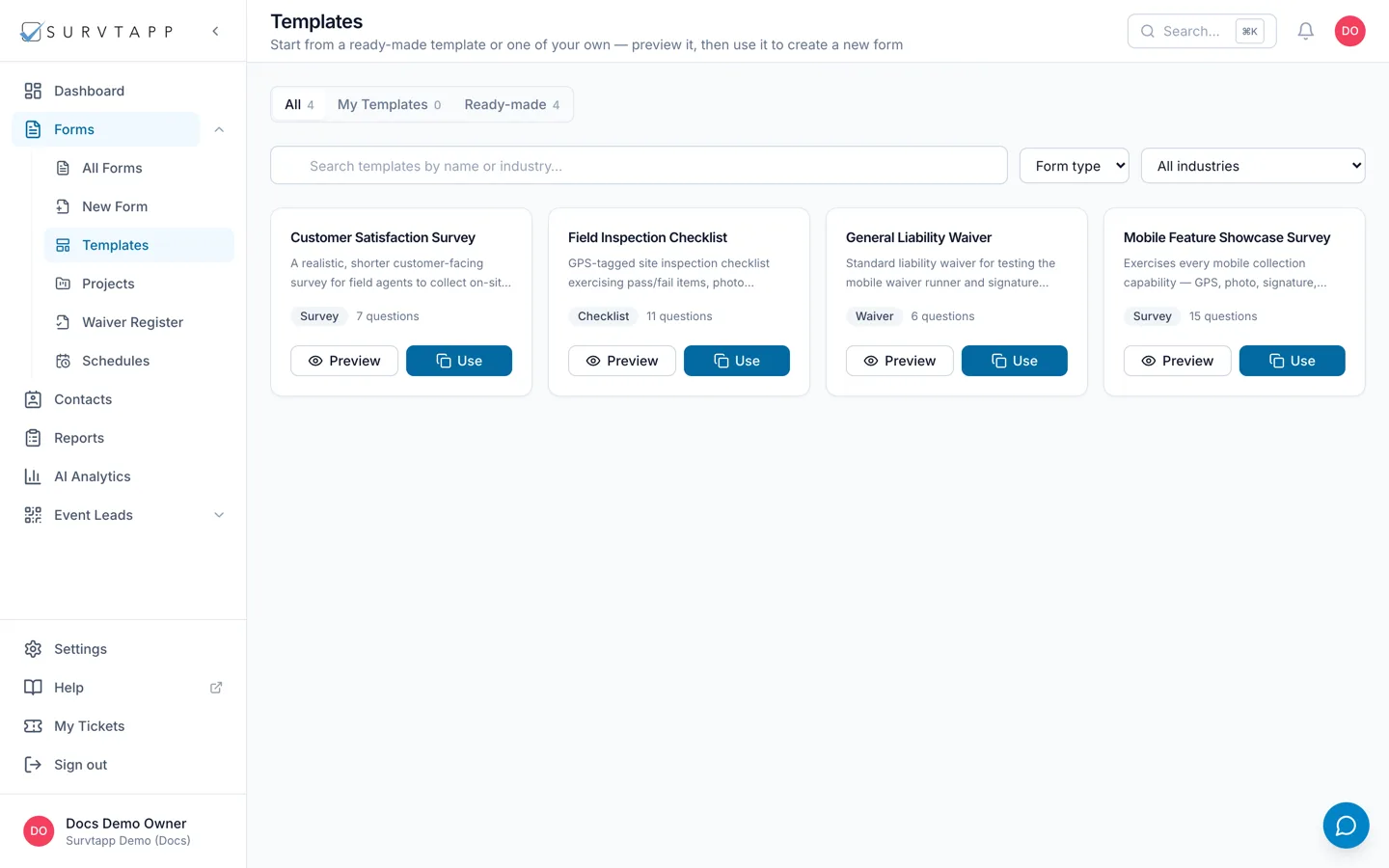
Go to Forms, then Templates. Narrow the list with the All, My Templates and Ready-made tabs, the search box or the industry filter, click Preview to read a template, then click Use — you land in the builder on a new draft form that is yours to edit. To make your own, open a form and click Save as template; note that this marks that form as a template rather than copying it, so duplicate it first if you still want to collect on it.
A template is a form with its questions already written. Starting from one is usually faster than starting from an empty builder, and you can change everything afterwards — the template is a starting point, not a cage.
Finding one
Go to Forms, then Templates. Three tabs narrow the list: All, My Templates and Ready-made, each with its count, so an empty My Templates tells you the truth rather than looking broken. Search templates by name or industry, and filter by industry. A template Survtapp considers a safe bet carries a Popular badge; each card also shows the form type and how many questions it holds.
Using one
- Click Preview on the card to open the template in a new tab and read it end to end.
- Back on the Templates page, click Use.
- You land in the builder on a NEW form that is yours — edit it, publish it, share it.
Using a template never changes the template, and the new form starts as a draft, so nothing is live until you publish it.
Saving your own form as a template
Open the form and click Save as template, at the end of the tab row. It then appears under My Templates, where your team can start from it.
One thing to know before you click it: Save as template marks THIS form as a template rather than taking a copy. The button changes to Saved as template. If you want to keep collecting on the form as well, duplicate it first (see below) and save the copy as the template.
Duplicating a form instead
If you only want another form like this one, duplicating is simpler than a template. From the Forms list, open the form’s actions menu, choose Duplicate, give the copy a New form title and click Duplicate. You get a fresh draft with the same questions and settings, and no responses.
Frequently asked questions
Does using a template copy its responses?
No. You get the questions and the settings. Responses belong to the form they were collected on.
Can I delete a template I made?
Yes, from its card under My Templates. The ready-made ones belong to Survtapp and cannot be deleted.
My form disappeared from Forms after I saved it as a template.
It became a template rather than a copy being taken, so it now lives under My Templates. Use it to create a fresh form to collect on.